CloudBridal v26.9.1: A Communications Workspace, Email Designs, and Recurring Tasks
We're excited to announce CloudBridal v26.9.1. Customer messaging gets the biggest overhaul: every email and text your store sends now lives in one Communications workspace, with a library of starters written for bridal boutiques, six email designs to choose from, sharper targeting for automatic messages, and a preview of exactly who will receive one before you switch it on. Tasks gain repeating routines, subtasks, a template library and email reminders. And for shops with a developer, API Access lets your own website or tools connect to your store. Here's what's new:
View complete 2026 release notes →
💬 One Place for Every Customer Message
Customer emails and texts used to be configured in several corners of Settings. They now live in one Communications workspace.
What's New:
- Every message in one list: Open Communications and the sidebar lists your own templates alongside every built-in message your store sends, from appointment confirmations and reminders to payment receipts, portal invitations and quotes. Each one shows whether it sends automatically, and a search box finds any message by situation.
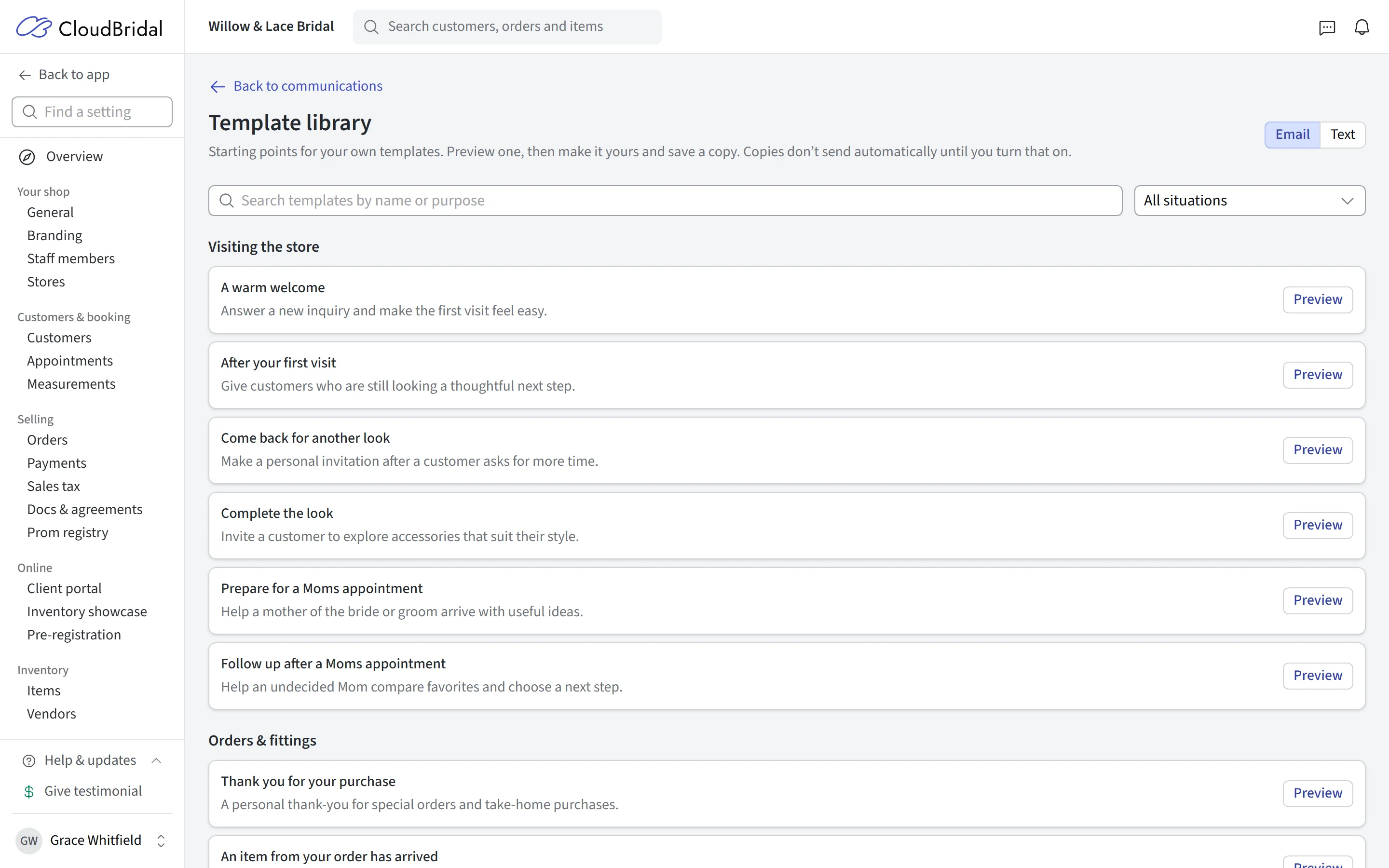
- Template library: Choose Template library for 26 ready-to-use starters, 17 emails and 9 texts, grouped by situation: visiting the store, orders and fittings, pickup and care, and after the celebration. Picking one opens a draft with the wording and purpose already filled in. Where a starter includes a suggested sending rule, it starts switched off. Nothing is saved until you say so.
- Appointment wording in one place: The wording of confirmations, reminders and cancellations, for your whole store or for one appointment type, is edited here too, with a picker that shows which types have custom wording. Rescheduled, waitlist confirmation and waitlist removal are now their own messages rather than sharing the "appointment updated" wording. Delivery settings, such as reminder timing and which types email or text, sit right beneath.
Key Benefits:
- Stop hunting through Settings to find where a particular email is worded
- Start from a starter written for a bridal boutique instead of a blank page
🎨 Design Your Customer Emails
Every email your store sends to a customer now shares one design of your choosing, applied to appointment messages, payment receipts and links, quotes, signature requests and portal messages alike.
What's New:
- Six designs: Choose Email design in Communications and pick from Minimal, Banner, Card, Editorial, Boutique and Modern. Minimal is the plain layout your emails have always used, so nothing changes until you choose another. Boutique adds a rich brand header and softly tinted sections; Modern a crisp header and a clean, spacious layout.
- Your branding, automatically: Designs use the logo, colors and heading font from your branding settings.
- Customize the header: Set the logo size, header alignment, logo background and header spacing, and preview a personal message, an appointment reminder and a payment receipt before you save.
- Reads properly on a phone: Every customer email now shares the same frame, with buttons that span the width of a phone screen.
Key Benefits:
- Give every message your customers receive one consistent, branded look
- Change the look of all of them in one place
🎯 Smarter Automatic Sending
Automatic emails and texts can now be aimed more precisely, and you can see who they will reach before you switch them on.
What's New:
- Referral source targeting: Send a message only to customers who found you through a particular source, alongside the existing customer type, staff member, order, appointment and payment filters.
- "Is not" conditions: Any condition can be flipped, so a follow-up can go to everyone except customers of a given type or appointment type.
- Custom-field conditions: Add up to three conditions on your own customer, order or appointment custom fields, with comparisons that fit the field: text, number, currency, date or checkbox. The same conditions work for automated tasks.
- Upcoming recipients: From a message with a scheduled sending rule, choose Upcoming recipients to see who is expected to receive it over the next 30 days, and a second list of who is not receiving it and why: opted out, no email address, already sent, purchases cancelled, and so on. Nothing is sent from the preview.
- Appointment smart fields: Messages can include the matched appointment's date, start and end times, staff member and status. When you send a message by hand you choose which appointment it refers to.
Note: A follow-up scheduled for the day of the appointment now always sends one hour after the appointment ends, so it cannot arrive while the customer is still in the fitting room.
✅ Tasks: Repeating Routines, Subtasks, and a Template Library
Tasks were built for one-off follow-ups tied to a customer or an order. This release makes them work for the routines that run your shop as well.
What's New:
- Recurring tasks: A task template can now repeat on a schedule, daily, weekly, monthly or yearly, with a start date, the weekdays you choose for weekly rules, or one day of the month for monthly rules. "File sales tax on the 20th", "Deep-clean the fitting rooms every Monday", "Reconcile the till each Friday".
- One open task at a time: CloudBridal keeps a single upcoming task from each routine visible. Completing it immediately creates the next task, due on its scheduled date, and missed dates are skipped rather than piling up as a backlog of overdue duplicates. A preview shows the next three due dates while you set the rule.
- Subtasks: Any task or template can carry a checklist that staff tick off one by one, with "2 of 5 complete" showing in the list.
- Template library: Task Management opens on a new workspace with your templates in a sidebar and a library of 17 ready-made templates for appointments, orders, team operations and recurring routines, each with its checklist and suggested timing. A chosen template lands in the editor with automatic creation switched off until you are happy with it.
- Upcoming tasks: Before a template goes live, ask it what it would do: pick a window of up to 90 days and see the tasks it expects to create, with the customer, assignee and dates, plus a list of the records it is skipping and why.
- A better task panel: Opening a task slides a panel in beside the list instead of covering it, edits save as you make them, and the arrow keys move you from task to task. A new Due date view splits your list into overdue and the next 30 days, later, and no due date.
Email Me About My Tasks and Appointments:
- Each staff member can now choose, in their own Profile → Notification Preferences, whether to be emailed as well as notified in the app when a task is assigned to them, when someone comments on it, and when it is due soon.
- A new Your appointments notification does the same for the calendar: a staff member is told when an appointment is assigned to them, or when one of theirs is rescheduled, confirmed or cancelled, whether a colleague made the change, the customer did online, or CloudBridal assigned it automatically. Nobody is told about their own edit, and the shop-wide booking alert leaves out the person who already heard.
- Email is off until a staff member turns it on, and it goes to the email address on their account. A seamstress or stylist who only needs their own appointments can be given a login limited to assigned appointments and tick Email there.
- Notification Preferences is now one grid, Appointments, Tasks and Customers, with an In app and an Email column, and the emails CloudBridal sends to the shop itself share one tidy layout.
Note: Tasks, templates, subtasks and the library are part of the Core plan and up. Recurring schedules and automatic task creation require Ultimate.
🔌 API Access, for Shops With a Developer
If you have someone who builds for you, a website chatbot, a booking widget, a CRM sync, an inventory feed, CloudBridal can now talk to it directly. If you don't, there is nothing here you need to do.
What's New:
- What it can do: Read and book appointments and availability, create and update customers and their events, read your inventory with photos and pricing, read orders and payments (never write them), send your store's own emails and texts subject to the customer's consent, and be told through webhooks when something changes.
- Free sandbox: Switch on API Access under Integrations and CloudBridal creates a practice copy of your store, with your settings but none of your customers' contact details, that appears in your store switcher under Practice and never expires. Your developer builds and tests there first.
- Going live: Keys against your real store are an add-on billed on your existing subscription, $50 a month in the US, £38 in the UK (plus VAT), CA$70 in Canada and AU$75 in Australia, available on every paid plan.
- Under your control: Each key carries only the permissions you tick, can be revoked at any time, and an activity log shows every call made and every notification sent. The developer reference is linked from the API Access screen.
🗓️ Additional Improvements
Automatic Refunds for Cancelled Paid Appointments:
- Paid appointment types gain Refund automatically when the customer cancels online, on the type's Payments tab in your appointment settings. When it is on, a customer who cancels online within your cancellation notice period gets the full fee back on their card, and if the fee was recorded as a sale, that sale is cancelled with it. It is off by default.
- When staff cancel a paid appointment, the confirmation now offers Refund the appointment fee, ticked or not according to that setting, so returning a fee no longer means a trip to Stripe. A refunded appointment shows Refunded on the appointment and in your appointments list.
Payment Refunded Email:
- A new Payment refunded message under Payments in Communications tells customers when money has gone back to them: card refunds once Stripe confirms them, cash and check refunds when you record them, for order payments and appointment fees alike. It is off until you switch it on, and you can add your own introduction.
Card Surcharging in Australia:
- Stripe is withdrawing card surcharging in Australia on 1 October 2026, following the Reserve Bank of Australia's prohibition on surcharges, so CloudBridal no longer offers it to Australian stores and the option has been removed from Stripe settings. Surcharging in the US, Canada and New Zealand is unchanged.
Event-Date Window for Online Bookings:
- Only accept online appointments whose event date falls within a window you set in days, for example no sooner than 30 days and no later than 540 days away. Enable it on the Event Date question in your appointment settings; either limit can be left blank. Staff booking in the back office see a warning but can still proceed.
Require a Full Name on Online Bookings:
- A customer who types only a first name into the booking form's Name field can now be asked for both. Turn on Require first and last name on the Name question in your appointment settings; it is off by default and applies to online bookings only.
Wholesale Cost on Order Reports:
- The Order Margins and Order Financials reports gain a Wholesale Cost column, the catalog wholesale price multiplied by quantity, with a total in the footer, so a month's wholesale cost of goods sold can be read straight off the report.
Reviewing Matches on Appointment Requests:
- When you accept an online appointment request, CloudBridal now shows which customer profile and which event it matched and asks you to choose when a match is ambiguous, instead of deciding silently.
Text Message Cost Estimates:
- Every SMS editor now shows Sends as ~N text messages as you type, with a hint when removing an emoji would cut the count. Curly quotes, long dashes and similar characters pasted from elsewhere are normalised when the text is sent, so one apostrophe no longer halves a message's capacity.
Month-Only Date Smart Fields:
- Date smart fields can render as a month instead of an exact day ("your September appointment"), chosen with a new Format selector in the smart-fields panel and stackable with day buffers.
Out-of-Stock Filter on Inventory On Hand:
- The Inventory On Hand report gains a Stock filter, so you can list items that have sold through as well as what is on the shelf. It defaults to In Stock, so saved reports behave as before.
Purchase Order Search by Item Name:
- Searching your purchase orders now matches the names of the items on them, not just the order number and reference, and the status counts reflect what you searched for.